Architecture skills for non-technical people who want to vibe-code
Hi everyone:-) These are the supporting materials for the workshop at Service Design in Government 2026. Everything the session refers to is on this one page, so you can follow along today and come back to it later. Nothing here expires.
How to use this page
The page has four parts:
- Classroom: six questions in two groups, deciding what to vibe-code and doing it safely, that we go through together in the first 20 minutes, with the diagrams from the screen so you can review them afterwards.
- Hands-on: step-by-step instructions for the second half, where we open our laptops. Longer commands and file contents have a Copy button so you do not have to type them.
- Cheat sheets and downloads: a terminal cheat sheet, every command in one place, the installers, and a glossary.
- More about the architecture: four longer reads from the classroom, for when you are building something.
Prefer a file? The whole page is also available as a PDF to download.
Copy buttons
Next to each command, file or link you need there is a Copy button. Press it and the text goes to your clipboard, and the button says "Copied" for a few seconds. If your browser will not allow copying, the text is selected for you instead and you can press Ctrl+C (or Cmd+C on a Mac). Screen reader users hear "Copied" as a status message. The text is always visible on the page, so you can also select and copy it yourself.
Accessibility
This page is built on the GOV.UK Prototype Kit and GOV.UK Frontend, works with a keyboard and screen readers, and reflows at 400% zoom. Every diagram has a written version underneath it. If anything is hard to use, tell us through the support tool and we will fix it.
Support after the workshop
An hour is not long. You will get further at home, and you will get stuck. That is normal.
The workshop message tool stays open for three weeks after the conference, until 14 October 2026. Ask anything: an error message you do not understand, a command that did not work, or "is this a sensible idea?". Paste the exact error text; it helps more than a description of it.
The plan for the hour
| Time | What we do |
|---|---|
| 5 minutes | Welcome, housekeeping, and a show of hands so we pitch the session right |
| 20 minutes | Classroom: six questions about deciding what to vibe-code and doing it safely |
| 30 minutes | Hands-on: run an app from one file, put Node in your home folder, build and run a GOV.UK prototype |
| 5 minutes | Where next, and how to get help |
If fewer than half the room has a laptop, the hands-on part becomes a demonstration on the big screen. The instructions below are written so you can repeat it at your desk afterwards, on a Mac or a PC.
Contents
- Part 1: Classroom
Deciding what to vibe-code
- Never mind vibes. What is code actually?
- How does it work?
- Is vibe code always AI?
- How do you decide what to code?
Doing it safely
- Part 2: Hands-on
- Part 3: Cheat sheets and downloads
- Part 4: More about the architecture
Part 1: Classroom
Twenty minutes, six questions in two groups: deciding what to vibe-code, and doing it safely. None of them are difficult. Together they are the difference between an app you can look after and an app that one day just stops working, for no good reason.
Deciding what to vibe-code, 1 of 4 Never mind vibes. What is code actually?
Code is plain text: instructions to do something, written in a file you could open on your desktop and read. Nothing more mysterious than that. The simplest app we make today is exactly that, one text file, with its layout, its data and its behaviour all inside it.
<!DOCTYPE html>
<html lang="en">
<head>
  <title>Sentence length checker</title>

  <!-- SETTINGS: the only part you need to edit -->
  <script>
    var SETTINGS = {
      appName: "Sentence length checker",
      longSentence: 8,     // more words than this gets flagged
      highlightColour: "#ffdd00",
      owner: "Your name here"
    };
  </script>
...first-code.html, the file you open in step 1. Plain text, 108 lines in all, and a whole app.Those instructions can be for different things, and that is the next question. For now, hold on to this: code is something you can have in a folder, open in a text editor, change, and close again.
Does vibe-coding create code?
Yes. When you ask an AI for an app, it writes text files exactly like the ones above. "Vibe-coding" just means describing what you want and accepting the files without reading them. The files are still there. They are yours. You can open them.
We are not asking you to learn to read code. We are asking you to know which file does what, where your data goes, and what the app is allowed to reach. That is architecture, and it is enough to keep control.
Deciding what to vibe-code, 2 of 4 How does it work?
Ask who is obeying the instructions. For the one-file app it is your web browser: it reads the file and does what it says, and nothing needs installing. For the prototype kit it is a tiny web server, Node, running in your home folder. Bigger systems add a compiler or an interpreter, or many files served by an application server, but the magic always starts in a text file somebody can read.
Code is text. Something has to run it.
A text file
A program that reads it
What you get
Layout, styles, data, behaviour
Already installed
No install, no internet
The prototype kit's files
You put this in your home folder today
localhost:3000, on your laptop
Both files are plain text. Open them in a text editor and you can read, and change, exactly what your app does.
Read figure 1 as text
Titled "Code is text. Something has to run it." Two rows with three columns: a text file, a program that reads it, what you get. Row 1: the text file first-code.html (layout, styles, data, behaviour) is read by your web browser (already installed) and you get a working page, with no install and no internet. Row 2: the text files routes.js and views (the prototype kit's files) are read by Node.js (which you install today) and you get a tiny web server at localhost:3000 on your laptop. A footnote says both files are plain text: open them in a text editor and you can read, and change, exactly what your app does.
Your browser can already run one kind of code, an HTML file, on its own. That is why the first app today needs no installation at all. The prototype kit is written in JavaScript that runs outside a browser, so it needs Node.js, a program whose only job is to run JavaScript files. That is the one thing we install.
Deciding what to vibe-code, 3 of 4 Is vibe code always AI?
No. An AI may have written the app, and the app may never talk to an AI again. This distinction is the one we most want you to leave with: "vibe-coded" and "AI-powered" are different things.
An app that just runs
An AI may have written it. It does not need an AI to work.
Works offline. Free to run. Nothing leaves your machine. Nobody can switch it off.
Examples: first-code.html, the glossary, a prototype kit running on localhost.
An app that calls an LLM
On your laptop or on a host
Claude, OpenAI and others. Needs your API key.
Needs internet. Costs per use. Your data goes to the provider. Needs a secret key that must never be written into the code.
Example: a transcript summariser.
Vibe-coded does not mean AI-powered. Most useful personal tools are the first kind.
Read figure 2 as text
Left half, "An app that just runs": a green box, "Your app, on your laptop. An AI may have written it. It does not need an AI to work." Below: works offline, free to run, nothing leaves your machine, nobody can switch it off. Examples: first-code.html, the glossary, a prototype kit running on localhost. Right half, "An app that calls an LLM": a green box "Your app, on your laptop or on a host" with an arrow labelled "internet" to a yellow box "An LLM API: Claude, OpenAI; needs your API key". Below: needs internet, costs per use, your data goes to the provider, needs a secret key that must never be written into the code. Example: a transcript summariser. Footnote: vibe-coded does not mean AI-powered; most useful personal tools are the left-hand kind.
- An app that just runs was written once, possibly by an AI, and then simply executes. A checklist, a calculator, a form prototype. Free, offline, private, and nobody can switch it off. Most useful tools are this kind.
- An app that calls an LLM while it runs sends data to a provider every time it is used. It needs an API key kept as a secret, it costs money per use, it needs the internet, and the data you put in leaves your machine. Sometimes that is exactly right, for instance a transcript summariser. It is a decision, and it should be a conscious one.
A third thing to name: vibe-coding products such as Lovable and Replit are coding agents that run on the company's computers and keep your app there. How that compares with an app on your laptop is in Part 4.
Deciding what to vibe-code, 4 of 4 How do you decide what to code?
Think of complexity as a ladder. On the bottom rung is a single text file with everything inside it: open it in a text editor, change it, done. Each rung up can do more, and needs more: extra tools, then accounts and keys, then bills, backups and compliance.
Up: it can do more
And you owe more: tools, accounts, keys, bills, backups, compliance, eventually a team.
Down: less to look after
Today is rungs 1 to 3. Keep your first idea as low as the job allows.
Read figure 3 as text
Six boxes stacked like the rungs of a ladder, numbered 1 at the bottom to 6 at the top. Rung 1: one HTML file in your home folder. Rung 2: a folder of files, a page and a data file next to it. Rung 3: a prototype kit running on your laptop. Rung 4: a prototype kit pushed to GitHub and hosted, behind a password. Rung 5: a hosted prototype that calls an LLM while it runs. Rung 6: a service with a database and user accounts. Beside the ladder: going up, it can do more and you owe more; going down, there is less to look after. Today is rungs 1 to 3.
The full ladder, with what each rung gives you and what it costs, is below. Each step up gives you something and costs you something, permanently. The rule: only accept the costs of a more complex option when the limitations of the simpler one have become a real problem.
| Rung | What it is | What you gain | What you now owe |
|---|---|---|---|
| 1 | One HTML file in your home folder, opened in a browser. Today's step 1. | A real app. Portable, private, no install. Email it to a colleague and it works. | Nothing. Data resets when you close it, unless you use browser storage. |
| 2 | A folder of files: the page reads data from a file next to it. Today's step 3. | Data separate from code. Non-technical colleagues can edit the data file. | Keeping the folder together. Send the folder, not the file. |
| 3 | A GOV.UK prototype kit running on your laptop. Today's step 7. | Multiple pages, real GOV.UK components, forms that remember answers between pages. | Putting Node on your machine. Starting the server each time. Still private to your machine. |
| 4 | The same kit pushed to GitHub and hosted, for example on Render, behind a password. This site is one. | A link you can send. User research sessions, stakeholders, colleagues on any device. | A hosting account, a password to manage, a deploy step, something that can be down when you are not looking. |
| 5 | A hosted kit that calls an LLM API to do work, such as summarising or classifying. | Genuinely new capability: language tasks at scale. | An API key kept secret, a bill, an internet dependency, and data leaving your control every time it runs. |
| 6 | A service with a database and user accounts. | Many people sharing live data. | Security, backups, privacy obligations, and realistically a team. |
Most personal and team tools belong on rungs 1 to 3. When user researchers ask about consent, data protection and retention, the answer is often "stay on rung 1 or 2 and the data never leaves the room".
Doing it safely, 1 of 2 How should I use my computer?
Your work computer has parts you may not touch and one part that is entirely yours. Most of the fear around "installing things" and "the terminal" comes from not knowing which is which. Here is the map. Stay in your bit and nothing you run can harm the rest of the machine.
System files. You cannot change them without admin rights, and you should never need to.
Mac: /Applications and /usr/local/bin. Windows: C:\Program Files. Installers put things here, which needs admin rights. We are not using this area today.
Mac: /Users/yourname. Windows: C:\Users\yourname. In the terminal: ~
Desktop
Documents
Downloads
first-code.html (one file)
apps/node (Node lives here)
my-first-prototype (a folder)
Everything you make today lives here. No admin rights needed.
A list of folders the terminal searches when you type a command. "node: command not found" means the folder Node lives in is not on the list. In step 5 you add it.
Read figure 4 as text
Three zones stacked top to bottom. Top, in red: "The operating system, Windows or macOS. System files. You cannot change them without admin rights, and you should never need to." Middle, in yellow: "Installed programs. Mac: /Applications and /usr/local/bin. Windows: C:\Program Files. Installers put things here. Node will go here. Often needs admin rights." Bottom, largest, in green: "Your home folder: yours to fill and organise. Mac: /Users/yourname. Windows: C:\Users\yourname. In the terminal: ~". Inside it are Desktop, Documents, Downloads, a file called first-code.html and a folder called my-first-prototype. A note reads "Everything you make today lives here. No admin rights needed." To the right, a blue box: "PATH: a list of folders the terminal searches when you type a command. 'node: command not found' means the folder Node lives in is not listed."
Your home folder
Every account on a computer has a home folder. On a Mac it is /Users/yourname; on Windows it is C:\Users\yourname. Desktop, Documents and Downloads all live inside it. You can create, rename and delete anything in there without asking anyone. Everything we make today goes in your home folder.
Things you are not allowed to touch
The operating system's own files are protected, and on a managed work laptop so is the "installed programs" area. Installers put programs there, which is why they ask for an administrator password, and why managed work laptops often refuse. We sidestep the whole problem today: Node goes in your home folder instead.
What is a file?
A file is a named lump of data on disk. A web page, a spreadsheet and a program are all files. The files we care about today are plain text: you can open them in any text editor and read them. That single fact is the foundation of everything else: if you can read the file, you can understand and change the app.
The terminal
The terminal is a window where you type instructions instead of clicking. It is not a different computer or a hidden mode: it is the same folders you see in Finder or File Explorer, addressed by name. On a Mac the app is called Terminal. On Windows we use PowerShell. The cheat sheet lists the six commands you need.
The PATH
When you type node in the terminal, the computer looks through a list of folders for a program with that name. That list is called the PATH. A program that is on your disk but not on the PATH gets "command not found" on a Mac or "not recognized" on Windows. In step 5 you put Node's folder on the PATH yourself and watch that message turn into a version number. Knowing this one thing demystifies most installation problems.
Doing it safely, 2 of 2 What's in the cloud?
You type a question into an AI. Where do the words go? Picture your laptop on the left, your department in the middle, and on the right a cloud that is the whole world. Departments typically offer an LLM in one of three ways. They feel identical from the chair, and they are not.
Where do my words go?
1. Public chat app, personal account
The provider's servers. Their terms apply, not your department's. Never paste personal data.
2. Departmental service (for example Copilot)
Your department's own account, with its rules
Provider's cloud, under a contract
3. A model on your own laptop
Your laptop. Nothing leaves it.
Smaller model, slower, needs a decent machine.
Coding agents follow the same pattern: Claude Code sends your prompt, and the files it reads, to the provider's API under your account's terms.
Read figure 5 as text
Three rows, each starting with a box labelled "You". Row 1, public chat app on a personal account: an arrow goes from you straight to "the provider's servers, where their terms apply, not your department's; never paste personal data". Row 2, departmental service, for example Copilot: an arrow goes from you to "your department's own account, with its rules", then on to "the provider's cloud, under a contract". Row 3, a model on your own laptop: an arrow goes from you to "your laptop; nothing leaves it", with a note that it is a smaller model, slower, and needs a decent machine. A footnote says coding agents follow the same pattern: Claude Code sends your prompt and the files it reads to the provider's API under your account's terms.
- A public chat app on a personal account. Your words go to the provider under the provider's terms. Fine for drafting a birthday poem. Not fine for anything with people's data in it.
- A departmental service, usually Microsoft Copilot running inside your department's own account with Microsoft, with the department's rules attached. IT will call that account a "tenant". Your words still leave your laptop, but under a contract your department has read. This is why IT says "use Copilot, not ChatGPT".
- A model running on your own laptop. Nothing leaves the machine. The models are smaller and slower and you need a reasonably powerful computer. Worth knowing about, not what we do today.
Coding agents follow the same pattern. When Claude Code reads a file to help you, the contents go to the provider's API. So the same rule applies: keep personal data out of the folder you are working in, and know whose account and terms you are using.
Part 2: Hands-on
Thirty minutes. We start with an app that needs nothing installed, then put one program, Node.js, in your home folder and use it to build and run a GOV.UK prototype on your own machine.
Each step says whether it is for a Mac, for Windows, or both. Do not skip the "check it worked" steps: they are how you find out where you are.
Before you start
You need
- A laptop. You do not need to be allowed to install software: Node goes in your home folder, no administrator rights needed.
- A web browser. Any of them.
- A plain text editor. On Windows, Notepad is fine. On a Mac, TextEdit is fine after one setting change (below). If you already have Visual Studio Code, use that.
- The internet, for the download in step 4 and for step 7. Steps 1 to 3 work offline once you have the files.
Opening the terminal
On a Mac
Press Cmd+Space, type Terminal, press Enter. You get a window with a line ending in % or $. That is the prompt, waiting for you.
On Windows
Press the Windows key, type PowerShell, press Enter. Do not choose "Run as administrator"; you do not need it. You get a blue or black window with a line ending in >. That is the prompt.
Finding your home folder
Everything you make today goes in your home folder, so it is worth knowing how to get there and how to tell you are there. Steps 1, 3 and 4 all come back to this.
On a Mac
In Finder, press Cmd+Shift+H. The window that opens is your home folder: its name is your username, with a house icon. If it is not in the sidebar, choose Finder, Settings, Sidebar and tick your username, so it always is.
On Windows
In File Explorer, click in the address bar at the top, type %USERPROFILE% and press Enter. The address bar then shows C:\Users\yourname: that is your home folder. Right-click it in the left-hand list and choose Pin to Quick access, so it is one click from now on.
How you know you are in the right place, on either: you can see Desktop, Documents and Downloads side by side, and the title or address bar shows your username, not "Downloads" or "Desktop".
The same place from the terminal. In the terminal window you opened above, type pwd and press Enter. It prints the same path. The terminal and the Finder or File Explorer window are looking at the same folder; they are two views of one thing.
Setting up TextEdit on a Mac
By default TextEdit shows an HTML file as a formatted web page rather than as code, and it replaces straight quotes with curly ones, which breaks code. Open TextEdit, choose TextEdit then Settings from the menu bar, and:
- On the New Document tab, choose Plain text and untick Smart quotes and Smart dashes.
- On the Open and Save tab, tick Display HTML files as HTML code instead of formatted text.
Windows users: Notepad needs no set-up. When you save a file, set "Save as type" to All files so it does not add .txt to the name.
Step 1: Run an app from one file (Mac and Windows)
This is a complete, working app in one text file: a checker that flags sentences over 25 words. Get it onto your computer either way below. Option A is worth the extra minute, because saving the file yourself shows you what it is called and where it lives.
Option A: copy it and save it yourself
- Press the Copy button under the box below.
- Open your text editor with a new, empty document and paste.
- Save it in your home folder with the name
first-code.html. The.htmlon the end is what tells your computer to open it in a browser. On Windows, set "Save as type" to All files, otherwise Notepad adds.txtto the name and you get a page of code instead of an app.
.html. Worth doing once and leaving on.Option B: download it
Download first-code.html. Your browser saves it in your Downloads folder. Move it to your home folder if you like; the point is that you know where it is.
Run it
Open your home folder, the way described in Finding your home folder, and double-click first-code.html. It opens in your browser as a page with a text box and a button. Paste in a paragraph of anything and press the button.
Now read the address bar. It starts with file:// and shows where the file is on your disk. On a Mac it should be file:///Users/yourname/first-code.html; on Windows, file:///C:/Users/yourname/first-code.html. No server, no internet, no account. This is rung 1 of the ladder.
If the address says Downloads or Desktop instead, the file is not in your home folder yet. Move it there now: it matters in step 3, when a second file has to sit next to it.
Step 2: Look inside and change it (Mac and Windows)
- Open
first-code.htmlin your text editor. On Windows, right-click it and choose Open with, then Notepad. On a Mac, right-click it, choose Open With, then TextEdit. - Near the top is a block labelled SETTINGS. Change
longSentence: 25tolongSentence: 15, and put your name inowner. - Save the file.
- Go back to the browser and refresh the page (F5, or Cmd+R on a Mac). Check the same text again.
You have just edited an app. While it is open, notice the three labelled sections: STYLES (presentation), CONTENT (presentation) and BEHAVIOUR (logic), with SETTINGS as the data. That is the structure from the classroom section, in one file.
Step 3: Two files: data separate from code (Mac and Windows)
Rung 2. The page and its data are in separate files, so a colleague can update the list without going near the code.
- Make a new folder in your home folder called
glossary. - Save both files into it: download glossary.html and download data.js. Or copy them from the boxes below.
- Double-click
glossary.html. Type in the filter box. - Open
data.jsin your editor, add an entry of your own (copy an existing line and change the words), save, and refresh the page.
The line in the HTML that does the joining is <script src="data.js">. Move either file out of the folder and the page breaks, which is exactly the cost of rung 2: keep the folder together.
Step 4: Put Node.js in your home folder (Mac and Windows)
Node.js is the program that runs the prototype kit. It is free and made by a non-profit foundation. We use version 24.21.0, the current long-term support release.
We are not going to run an installer. Node is happy to live in an ordinary folder, so we put it in your home folder, the green zone from the map of your computer. That means no administrator password, no "allow this app to make changes" prompt, and nothing a managed laptop can object to. To remove it later, delete the folder.
The one job the installer would have done for us, telling the terminal where Node is, we do ourselves in step 5. That is the PATH, and doing it by hand is the point.
4a. Make a folder called apps
In your terminal, go to your home folder and make a folder to keep programs in:
cd ~Works in both Terminal on a Mac and PowerShell on Windows. Nothing is printed; the prompt just changes.
mkdir appsIf it says the folder already exists, that is fine: carry on.
4b. Download Node for your machine
Save the file in your Downloads folder, which is where your browser puts it anyway. Do not open or unzip it by double-clicking; we do that in the terminal in a moment.
On a Mac
Two versions, one per kind of chip. To find out which you have, open the Apple menu and choose About This Mac. It says either "Chip: Apple M1" (or M2, M3, M4), which is Apple silicon, or "Processor: Intel", which is Intel.
- Download Node.js 24.21.0 for a Mac with Apple silicon (about 50 MB)
- Download Node.js 24.21.0 for a Mac with an Intel chip (about 52 MB)
On Windows
Almost every PC needs the 64-bit version. Surface Pro X, Surface Pro 11 and some newer "Copilot+" laptops need the ARM version. To check, open Settings, System, About and read the System type line: "x64-based processor" is 64-bit; "ARM-based processor" is ARM.
- Download Node.js 24.21.0 for Windows, 64-bit (about 36 MB)
- Download Node.js 24.21.0 for Windows on ARM (about 32 MB)
4c. Unpack it into the apps folder and give it a short name
Two commands: one unpacks the download into the apps folder you made in 4a, inside your home folder, the other renames the unpacked folder to plain node. The short name matters: it means every command from here on is the same for everyone in the room.
On a Mac with Apple silicon
tar -xzf ~/Downloads/node-v24.21.0-darwin-arm64.tar.gz -C ~/appsTakes a few seconds and prints nothing. "No such file" means the download is not in your Downloads folder, or has a different name.
mv ~/apps/node-v24.21.0-darwin-arm64 ~/apps/nodeGives the folder a short name, so the next commands are the same for everyone.
On a Mac with an Intel chip
tar -xzf ~/Downloads/node-v24.21.0-darwin-x64.tar.gz -C ~/appsTakes a few seconds and prints nothing. "No such file" means the download is not in your Downloads folder, or has a different name.
mv ~/apps/node-v24.21.0-darwin-x64 ~/apps/nodeGives the folder a short name, so the next commands are the same for everyone.
Check it is there
ls ~/apps/node/binYou should see node, npm, npx and corepack listed.
What each part of this command means
| This part | Means |
|---|---|
tar |
the Mac's built-in unpacking tool |
-xzf |
extract, it is gzipped, from this file |
~/Downloads/node-v24.21.0-darwin-arm64.tar.gz |
the file you downloaded |
-C ~/apps |
put the result in the apps folder in your home folder |
mv |
move, which is also how you rename |
~/apps/node-v24.21.0-darwin-arm64 |
the long name the unpacking gave the folder |
~/apps/node |
the short name we want |
On Windows, 64-bit
Expand-Archive ~\Downloads\node-v24.21.0-win-x64.zip -DestinationPath ~\appsTakes ten seconds or so and prints nothing. "Cannot find path" means the download is not in your Downloads folder, or has a different name.
Rename-Item ~\apps\node-v24.21.0-win-x64 nodeGives the folder a short name, so the next commands are the same for everyone.
On Windows on ARM
Expand-Archive ~\Downloads\node-v24.21.0-win-arm64.zip -DestinationPath ~\appsTakes ten seconds or so and prints nothing. "Cannot find path" means the download is not in your Downloads folder, or has a different name.
Rename-Item ~\apps\node-v24.21.0-win-arm64 nodeGives the folder a short name, so the next commands are the same for everyone.
Check it is there
ls ~\apps\nodeYou should see node.exe, npm.cmd and npx.cmd among the files listed.
What each part of this command means
| This part | Means |
|---|---|
Expand-Archive |
PowerShell's built-in unzip |
~\Downloads\node-v24.21.0-win-x64.zip |
the file you downloaded |
-DestinationPath ~\apps |
put the result in the apps folder in your home folder |
Rename-Item |
rename a file or folder |
~\apps\node-v24.21.0-win-x64 |
the long name the unzipping gave the folder |
node |
the short name we want |
More detail for Mac users
Why not double-click the download?
You can. Finder unpacks a .tar.gz when you double-click it, but leaves a folder with a long name in Downloads that you then have to drag into apps and rename to node by hand. The two terminal commands do the same thing in one go, and you have to use the terminal for the PATH anyway. If you did double-click it, drag and rename, then carry on with the check.
Will macOS complain that it came from the internet?
No. Node's files are signed by the OpenJS Foundation and checked by Apple, so they run from the terminal without a prompt. We tested this on macOS 15 with the download flagged the way Chrome flags it.
"No such file or directory"
The download is not where the command expects. Check your Downloads folder in Finder for the exact file name. Safari sometimes unpacks archives automatically, leaving a folder instead of the .tar.gz: if so, drag that folder into apps and rename it to node.
Managed work Macs
This method needs no admin rights, which gets past most management tools. A very locked-down Mac can still refuse to run programs from your home folder. If node -v in step 5 gives a "killed" or "not permitted" message, that is what has happened; pair with a neighbour and ask IT for Node.js afterwards.
Prefer a proper installer?
If you have an admin password for the Mac and would rather run an installer, the Node.js 24.21.0 installer for Mac works on both kinds of chip and sets the PATH for you, so you can skip step 5 apart from the check. Press Continue, Continue, Agree, Install, enter your password, Close.
Already have Node from Homebrew or nvm?
Skip steps 4 and 5. Any version 20 or later works. Check with node -v.
More detail for Windows users
Why not right-click and Extract All?
You can, but Extract All puts the zip's folder inside another folder of the same name, so you end up with apps\node-v24.21.0-win-x64\node-v24.21.0-win-x64\node.exe and the PATH step fails. The Expand-Archive command does not do that. If you did use Extract All, move the inner folder up into apps and rename it node.
"Cannot find path"
The download is not where the command expects. Open Downloads in File Explorer and check the exact file name. If your browser saved it somewhere else, drag it into Downloads and try again.
Browser warnings
Edge or Chrome may say the file "isn't commonly downloaded" or "could harm your device". Choose Keep. It is a zip of a well-known program; the warning is about how few people download this exact file, not about its contents. You can compare the checksum with the one on nodejs.org if you want to be sure.
Managed work PCs
This method needs no admin rights, which gets past the usual "you cannot install software" block. Some organisations go further and stop any program running from your home folder (AppLocker or similar). If node -v in step 5 says the program "has been blocked by group policy", that is what has happened. There is no workaround worth trying in the room: pair with a neighbour, and ask IT for "Node.js LTS" afterwards, which is widely approved.
Prefer a proper installer?
If your account can install software and you would rather use an installer, the Node.js 24.21.0 installer for Windows 64-bit (or the ARM version) sets the PATH for you. Press Next through the screens, leave "Add to PATH" selected, leave "Tools for Native Modules" unticked, press Install and Yes. Then skip step 5 apart from the check.
Already have Node?
Skip steps 4 and 5 if node -v already prints version 20 or later.
Step 5: Tell the terminal where Node is (the PATH) (Mac and Windows)
First, prove to yourself that the terminal cannot find Node yet:
node -vBefore the PATH step this fails. After it, you should see v24.21.0.
You get "command not found" on a Mac or "not recognized" on Windows. Node is on your disk, in apps/node, but the terminal does not look there. It only looks in the folders on its list, the PATH. We are going to add our folder to the front of that list.
5a. Add Node to the PATH
One command. It changes a setting for your account, so it needs no admin rights, and it lasts: every terminal you open from now on will know where Node is.
On a Mac
echo 'export PATH="$HOME/apps/node/bin:$PATH"' >> ~/.zshrcWrites the same instruction into the file your terminal reads every time it opens. Close the terminal and open a new one to see it work.
What each part of this command means
| This part | Means |
|---|---|
echo |
print this text |
'export PATH="$HOME/apps/node/bin:$PATH"' |
the instruction: put our folder at the front of the PATH. In single quotes so it is written exactly as shown |
>> |
instead of printing it on screen, add it to the end of a file |
~/.zshrc |
the file your terminal reads every time it opens. The dot at the start makes it hidden in Finder |
If your Mac is from before 2019 and the terminal prompt ends in $ rather than %, it uses an older shell: change ~/.zshrc to ~/.bash_profile in the command.
On Windows
[Environment]::SetEnvironmentVariable("Path", "$HOME\apps\node;" + [Environment]::GetEnvironmentVariable("Path", "User"), "User")Changes the PATH for your own account only, so no admin rights are needed. Close PowerShell and open a new window to see it work.
What each part of this command means
| This part | Means |
|---|---|
[Environment]::SetEnvironmentVariable( |
change a setting that is stored permanently |
"Path", |
the setting called Path |
"$HOME\apps\node;" + [Environment]::GetEnvironmentVariable("Path", "User"), |
our folder first, then whatever your account's Path already was |
"User") |
store it for your account only, which needs no admin rights |
If you would rather do it by clicking
This does the same thing as the command. Use one or the other, not both.
- Press the Windows key, type environment, and choose Edit environment variables for your account. (Not the one that says "system", which needs admin rights.)
- In the top list, "User variables", select Path and press Edit. If there is no Path row, press New, name it
Path, and put the folder below as its value. - Press New, type
%USERPROFILE%\apps\node, and press Enter.%USERPROFILE%means your home folder. - Press OK, then OK again.
5b. Prove it stuck
The change does not reach the window you have open, only new ones. So close the terminal window completely, open a new one, and then:
node -vBefore the PATH step this fails. After it, you should see v24.21.0.
npm -vYou should see a number such as 11.6.0. npm comes with Node.
Both print a version number, and you are done. Same terminal, same Node, one folder added to a list: that is all the PATH is. "Command not found" or "not recognized" means the change did not take; the details below get you going. Windows only: if node prints a version but npm gives a long red message about scripts, the PATH is fine. That is step 6.
If it still cannot find Node in a new window
First, get unblocked. This line adds the folder to the PATH for the window you have open, and only that window. It proves the idea, the PATH is just a list of folders, and it gets you through the rest of the session even if the permanent change is fighting you. Run it, then try node -v again.
On a Mac
export PATH="$HOME/apps/node/bin:$PATH"Only lasts until you close this window. Nothing is printed. Try node -v straight after.
What each part of this command means
| This part | Means |
|---|---|
export |
set a setting for this terminal window |
PATH= |
the setting called PATH, the list of folders to search |
" |
start of the new list |
$HOME/apps/node/bin |
our folder first. $HOME is your home folder, so this is the same on every Mac |
: |
the separator between folders in the list |
$PATH |
then everything that was already on the list |
" |
end of the new list |
On Windows
$env:Path = "$HOME\apps\node;" + $env:PathOnly lasts until you close this window. Nothing is printed. Try node -v straight after.
What each part of this command means
| This part | Means |
|---|---|
$env:Path |
the setting called Path, the list of folders to search |
= |
set it to |
"$HOME\apps\node;" |
our folder first. $HOME is your home folder, so this is the same on every PC. The semicolon is the separator between folders |
+ |
joined onto |
$env:Path |
everything that was already on the list |
Then find out why the permanent change did not take. Look at what is actually on the PATH:
On a Mac
echo $PATHA list of folders separated by colons. After step 5, /Users/yourname/apps/node/bin is at the front.
If /Users/yourname/apps/node/bin is not in there, the line did not reach the file. Check the file with cat ~/.zshrc: the last line should be the export line. If the file is empty or the line is missing, run the 5a command again. If your prompt ends in $, see the note about older Macs above.
On Windows
$env:Path -split ";"One folder per line. After step 5, C:\Users\yourname\apps\node is at the top.
If C:\Users\yourname\apps\node is not in the list, the change did not take. Open the Edit environment variables dialogue from 5a and check the Path row under User variables. Windows Terminal sometimes keeps old settings for windows that were already open: close every terminal window, not just the tab.
If the folder is on the PATH but Node still is not found, check the folder itself: on a Mac, ls ~/apps/node/bin should list node; on Windows, ls ~\apps\node should list node.exe. If not, the rename in 4c did not happen, or the files are nested one folder deeper.
Step 6: Windows only: let PowerShell run npm (Windows)
Mac users, skip to step 7.
Look at what npm -v did in step 5b.
- A version number: your PowerShell already allows scripts. That is common on managed laptops, where IT has set it for you. Skip to step 7.
- A long red message containing "running scripts is disabled on this system": you need the one command below.
Out of the box, PowerShell refuses to run scripts. npm and npx are scripts (npm.ps1 and npx.ps1, which came in the zip), while node.exe is a program, which is why step 5 worked. The rule is about the kind of file, not where it lives, so keeping Node in your home folder does not get round it. Run this once:
Set-ExecutionPolicy -Scope CurrentUser -ExecutionPolicy RemoteSignedAnswer Y when asked. This only affects your own account. RemoteSigned means scripts on your own disk run, and scripts downloaded from the internet must be signed. Not needed if npm -v already works.
Type Y and press Enter when asked. Then check:
npm -vYou should see a number such as 11.6.0. npm comes with Node.
If npm still will not run
"is not digitally signed"
Windows has marked the script files as downloaded from the internet. This happens if you unpacked the zip with Explorer's Extract All rather than the command in step 4. Remove the mark from the files:
Unblock-File ~\apps\node\*.ps1Only needed if npm says the file "is not digitally signed". Removes the "downloaded from the internet" mark from the script files.
"overridden by a policy defined at a more specific scope"
Your organisation controls this setting and you cannot change it. You do not need to: type npm.cmd wherever these instructions say npm, and npx.cmd wherever they say npx. Those are ordinary programs, not scripts, and do the same job. Or use Command Prompt instead of PowerShell for the rest of the session (press the Windows key, type cmd): the remaining commands work the same there, without the .cmd.
Step 7: Create your first prototype (Mac and Windows)
First, make sure you are in your home folder:
cd ~Works in both Terminal on a Mac and PowerShell on Windows. Nothing is printed; the prompt just changes.
Now ask Node to download the GOV.UK Prototype Kit and set up a new prototype in a folder called my-first-prototype:
npx --yes govuk-prototype-kit@13.20.5 create my-first-prototypeRun it from your home folder. Takes one to three minutes and needs the internet. It prints "Prototype created" when done.
This needs the internet and takes one to three minutes. It downloads the kit and the GOV.UK Frontend components from the public npm registry. When it finishes you see "Prototype created". If it fails on a work laptop with words like "proxy", "ECONNRESET" or "self signed certificate", your network is blocking npm; try a phone hotspot, or take it home.
Move into the new folder:
cd my-first-prototypeYour prompt should now show the folder name.
app, and a large node_modules folder of other people's code that the kit depends on. You never edit node_modules. Everything you make is in app.Step 8: Run it and open it (Mac and Windows)
npm run devLeave this window open while you use the prototype. Press Ctrl and C in this window to stop it.
After a few seconds it prints "The Prototype Kit is now running at" and an address. Open that address in your browser:
Paste it into the address bar of your browser. "localhost" means "this computer".
You are looking at a web server, running on your laptop, serving pages to your laptop. Nobody else can see it. This is rung 3.
The terminal window is now busy being the server. Leave it open. To stop the server, click in that window and press Ctrl+C. To start again another day, open a terminal and run:
cd ~/my-first-prototypeThen run npm run dev again.
then npm run dev again.
Step 9: Add a page, with and without an AI (Mac and Windows)
Without an AI: use the kit's templates
- With the server running, open http://localhost:3000/manage-prototype/templates.
- Choose "Question page" and press Create. Give it the path
/question. - Open http://localhost:3000/question. Then find the new file at
app/views/question.htmlin your editor, change the question text, save, refresh.
For choosing and configuring components, Joe's component pad is a good companion. Pick a component, set its options, and copy the code into your page.
With a chat AI
Any chat tool your organisation allows will do, and for most people that means Microsoft Copilot. Copy this prompt, paste it in, then save the reply as app/views/about.html inside your prototype folder and open http://localhost:3000/about. The kit notices new files without a restart.
With a coding agent: Claude Code
A coding agent edits the files for you, in the folder you start it in. You need a Claude account. Install it, then run it from inside your prototype folder.
Install on a Mac
curl -fsSL https://claude.ai/install.sh | bashDownloads and runs the official installer. Close and reopen Terminal afterwards.
Install on Windows
irm https://claude.ai/install.ps1 | iexDownloads and runs the official installer. You do not need to run PowerShell as administrator. Close and reopen PowerShell afterwards.
Optional: installing Git for Windows gives Claude Code a fuller set of commands to work with. It works without it.
Open a new terminal, go to your prototype folder (cd ~/my-first-prototype), and start it:
claudeRun it from inside the my-first-prototype folder. The first time, it asks you to log in with a Claude account.
Then ask for what you want, for example:
It will show you each change and ask before writing files. Read what it proposes: it is text, and you now know which folder is which.
Where next: options for going further
In order of complexity, and of what each one will cost you to look after.
- Keep building on rungs 1 and 2. Ask an AI for single-file tools: a meeting-cost calculator, a checklist, a decision log. Always add "make it flat, make it simple, make it in one file".
- Prototype real services on rung 3. The prototype kit documentation and the GOV.UK Design System cover everything the kit can do.
- Put it on GitHub with GitHub Desktop: a visual app that saves snapshots of your folder and lets you undo. Think of it as save points, nothing more for now.
- Host it on a service such as Render so you can send colleagues a link. That is rung 4 and it is how this site is hosted. Set a password.
- Add an LLM call only when the app genuinely needs to read or write language at scale. That is rung 5: an API key, a bill, and data leaving your control. Read the two kinds of app section again first.
What you could build on Monday
You have just vibe-coded, three ways: a template, a chat prompt and a coding agent. The difference between you and someone who is stuck within a week is that you know which folder does what, where the data lives, and what the app can reach.
You do not need Claude Code. Copilot is enough.
If Copilot chat is the only AI your department allows, that is fine. The method is the same and it fits in one line: ask, save, refresh. Ask Copilot for a file. Save the reply as a file: on your desktop for a one-file tool, or in app/views for a kit page. Refresh the browser. Everything on rungs 1 to 3 can be built that way, one file at a time, with the chat window you already have. If your department has switched on Copilot's agent mode in Visual Studio Code, that is the equivalent of Claude Code, and step 9's agent prompt works there too.
Five things people in your job have asked for. Each has a rung, the cost that comes with it, and an opening prompt to copy. Replace the parts in square brackets.
1. A GOV.UK style checker for content designers Rung 1
Paste a draft, get a list of long sentences, words to avoid and other habits your style guide bans. Same shape as today's sentence checker, one file, offline. Cost: nothing. Email it to the team.
2. A service blueprint builder Rung 2
A page that draws a blueprint from a data file a colleague can edit without touching the code. Cost: keep the two files together.
3. A fieldwork tracker for a delivery team Rung 3
A few kit pages: list the visits, add one, check your answers. Runs on one laptop, real GOV.UK components. Cost: Node on the machine, start the server each time.
4. A prototype for next week's research round Rung 3 or 4
Four pages of a real journey for participants to click through. Rung 3 if you sit with them, rung 4 hosted behind a password if they are remote. Cost: a hosting account and a password to manage.
5. A transcript synthesiser Rung 5
Paste a transcript, get themes and quotes back. This one phones an AI, so it needs an API key your department has approved, and the transcripts leave your machine every time it runs. Cost: a key kept as a secret, a bill, and a conversation with whoever owns your data protection. Do it with your department's approved provider, never a personal key.
Whatever you try, the support form is open until 14 October 2026.
Example vibe-coded app with the prototype kit
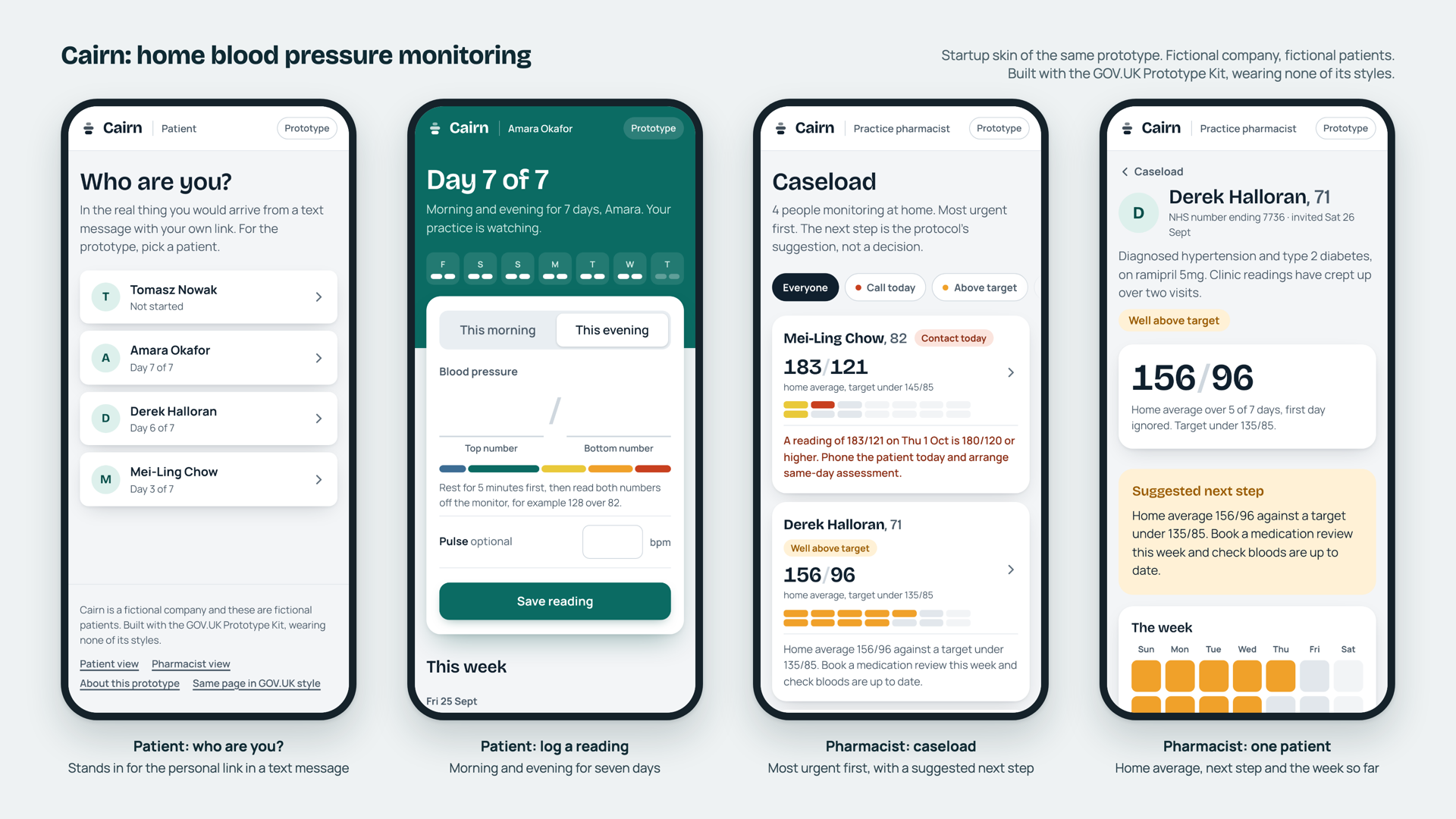
This is what a rung 4 app looks like once it is built, and it was vibe-coded in one evening after the workshop, in a prototype kit exactly like the one you created in step 7. It sketches a pathway for home blood pressure monitoring. A GP practice invites a patient to take their blood pressure at home, morning and evening, for a week. The patient types the two numbers into their phone. The practice pharmacist sees everyone who is monitoring in one list, most urgent first, with a suggested next step for each person. The rules are loosely those of the NICE guideline: ignore the first day, average the rest, and treat any reading of 180 over 120 or more as a same-day call. The patients are invented and it is a sketch, not clinical advice.
Two things to notice. First, it is two roles and one list. Whatever a patient types appears on the pharmacist's screen straight away, because both pages read the same list on the server, which writes it to a file. That is the whole of rung 4: the kit is hosted somewhere other than your laptop and keeps a little data between visits. There is no database and no sign-in. Second, the kit does not lock you into the GOV.UK look. The same app runs twice from the same code and the same data file, once in GOV.UK style and once as Cairn, the startup skin in the picture, which loads none of GOV.UK Frontend's styles. Only the templates and the stylesheet differ. A reading entered in one appears in the other.
Try it on your phone: enter a reading as a patient, then open the pharmacist's caseload and find yourself. The reset button on each front door puts the four fictional patients back the way they started. Other people may be using it at the same time, so do not type anything real.
Part 3: Cheat sheets and downloads
Terminal cheat sheet: Mac and Windows side by side
Six commands cover everything we do today. Press Enter after each one. The terminal is case-sensitive on a Mac and forgiving on Windows.
| In plain English | Mac (Terminal) | Windows (PowerShell) | Notes |
|---|---|---|---|
| Where am I? | pwd | pwd | Prints the folder you are in. "Print working directory." |
| List what is in this folder | ls | ls | On Windows dir does the same. |
| Go to my home folder | cd ~ | cd ~ | "Change directory." The ~ means home on both. |
| Go into a folder | cd my-first-prototype | cd my-first-prototype | Type the first few letters and press Tab to autocomplete. |
| Go up one level | cd .. | cd .. | Two dots mean "the folder that contains this one". |
| Make a new folder | mkdir glossary | mkdir glossary | "Make directory." |
| Open this folder in Finder or File Explorer | open . | start . | The dot means "this folder". Handy when you get lost. |
| Clear the screen | clear | cls | Cosmetic. Nothing is lost. |
| Stop the program that is running | Ctrl+C | Ctrl+C | Yes, Ctrl on a Mac too. This is how you stop the prototype server. |
| Repeat an earlier command | ↑ | ↑ | The up arrow walks back through what you typed. |
| Paste | Cmd+V | Right-click, or Ctrl+V | In older Windows PowerShell windows, right-clicking pastes. |
| Which version of Node do I have? | node -v | node -v | Also the quickest way to check Node is installed at all. |
Two habits that save time: the terminal remembers where you are between commands, so run pwd when unsure; and when a command fails, read the last two lines of what it printed before anything else. The answer is usually there.
Every command in one place
The same commands as in the steps above, gathered together for when you repeat this at home.
Step 4: Go to your home folder Mac and Windows
cd ~Works in both Terminal on a Mac and PowerShell on Windows. Nothing is printed; the prompt just changes.
Step 4: Make an apps folder Mac and Windows
mkdir appsIf it says the folder already exists, that is fine: carry on.
Step 4: The mac (apple silicon) command to unpack node into apps Mac
tar -xzf ~/Downloads/node-v24.21.0-darwin-arm64.tar.gz -C ~/appsTakes a few seconds and prints nothing. "No such file" means the download is not in your Downloads folder, or has a different name.
Step 4: The mac (apple silicon) command to rename the node folder Mac
mv ~/apps/node-v24.21.0-darwin-arm64 ~/apps/nodeGives the folder a short name, so the next commands are the same for everyone.
Step 4: The mac (intel) command to unpack node into apps Mac
tar -xzf ~/Downloads/node-v24.21.0-darwin-x64.tar.gz -C ~/appsTakes a few seconds and prints nothing. "No such file" means the download is not in your Downloads folder, or has a different name.
Step 4: The mac (intel) command to rename the node folder Mac
mv ~/apps/node-v24.21.0-darwin-x64 ~/apps/nodeGives the folder a short name, so the next commands are the same for everyone.
Step 4: Check the node folder Mac
ls ~/apps/node/binYou should see node, npm, npx and corepack listed.
Step 4: The windows (64-bit) command to unpack node into apps Windows
Expand-Archive ~\Downloads\node-v24.21.0-win-x64.zip -DestinationPath ~\appsTakes ten seconds or so and prints nothing. "Cannot find path" means the download is not in your Downloads folder, or has a different name.
Step 4: The windows (64-bit) command to rename the node folder Windows
Rename-Item ~\apps\node-v24.21.0-win-x64 nodeGives the folder a short name, so the next commands are the same for everyone.
Step 4: The windows (arm) command to unpack node into apps Windows
Expand-Archive ~\Downloads\node-v24.21.0-win-arm64.zip -DestinationPath ~\appsTakes ten seconds or so and prints nothing. "Cannot find path" means the download is not in your Downloads folder, or has a different name.
Step 4: The windows (arm) command to rename the node folder Windows
Rename-Item ~\apps\node-v24.21.0-win-arm64 nodeGives the folder a short name, so the next commands are the same for everyone.
Step 4: Check the node folder Windows
ls ~\apps\nodeYou should see node.exe, npm.cmd and npx.cmd among the files listed.
Step 5: Check the terminal can find node Mac and Windows
node -vBefore the PATH step this fails. After it, you should see v24.21.0.
Step 5: Check npm is available Mac and Windows
npm -vYou should see a number such as 11.6.0. npm comes with Node.
Step 5: Add node to the path for this window only (fallback) Mac
export PATH="$HOME/apps/node/bin:$PATH"Only lasts until you close this window. Nothing is printed. Try node -v straight after.
Step 5: Add node to the path permanently Mac
echo 'export PATH="$HOME/apps/node/bin:$PATH"' >> ~/.zshrcWrites the same instruction into the file your terminal reads every time it opens. Close the terminal and open a new one to see it work.
Step 5: Show your path Mac
echo $PATHA list of folders separated by colons. After step 5, /Users/yourname/apps/node/bin is at the front.
Step 5: Add node to the path for this window only (fallback) Windows
$env:Path = "$HOME\apps\node;" + $env:PathOnly lasts until you close this window. Nothing is printed. Try node -v straight after.
Step 5: Add node to the path permanently Windows
[Environment]::SetEnvironmentVariable("Path", "$HOME\apps\node;" + [Environment]::GetEnvironmentVariable("Path", "User"), "User")Changes the PATH for your own account only, so no admin rights are needed. Close PowerShell and open a new window to see it work.
Step 5: Show your path Windows
$env:Path -split ";"One folder per line. After step 5, C:\Users\yourname\apps\node is at the top.
Step 6: Allow powershell to run npm Windows
Set-ExecutionPolicy -Scope CurrentUser -ExecutionPolicy RemoteSignedAnswer Y when asked. This only affects your own account. RemoteSigned means scripts on your own disk run, and scripts downloaded from the internet must be signed. Not needed if npm -v already works.
Step 6: Unblock the npm scripts Windows
Unblock-File ~\apps\node\*.ps1Only needed if npm says the file "is not digitally signed". Removes the "downloaded from the internet" mark from the script files.
Step 7: Create your first prototype Mac and Windows
npx --yes govuk-prototype-kit@13.20.5 create my-first-prototypeRun it from your home folder. Takes one to three minutes and needs the internet. It prints "Prototype created" when done.
Step 7: Move into your prototype folder Mac and Windows
cd my-first-prototypeYour prompt should now show the folder name.
Step 8: Run your prototype Mac and Windows
npm run devLeave this window open while you use the prototype. Press Ctrl and C in this window to stop it.
Step 8: Your running prototype Mac and Windows
Paste it into the address bar of your browser. "localhost" means "this computer".
Step 8: Get back into your prototype folder next time Mac and Windows
cd ~/my-first-prototypeThen run npm run dev again.
Step 9: Install claude code Mac
curl -fsSL https://claude.ai/install.sh | bashDownloads and runs the official installer. Close and reopen Terminal afterwards.
Step 9: Install claude code Windows
irm https://claude.ai/install.ps1 | iexDownloads and runs the official installer. You do not need to run PowerShell as administrator. Close and reopen PowerShell afterwards.
Step 9: Start claude code inside your prototype Mac and Windows
claudeRun it from inside the my-first-prototype folder. The first time, it asks you to log in with a Claude account.
Downloads
Everything used in the session, served from this site so it is all in one place. The "archive" files are the ones the hands-on steps use; the installers are the alternative for people with admin rights who prefer one. Files marked "official site" are too large to keep here and link to the maker's download page instead.
This whole page as a PDF
- workshop-materials.pdf: everything on this page, including the diagrams with their written versions, every command, the prompts and the example files, for reading offline or printing.
Example apps
- first-code.html: the one-file sentence length checker (step 1)
- glossary.html and data.js: the two-file glossary (step 3). Save both in the same folder.
Installers
Claude Code is installed with a command rather than a download: see step 9. It needs a Claude account.
Prompts that keep things simple
AI tools default to complexity because complexity is what most of their training data looks like. These sentences pull them back down the ladder. Add them to your own prompts.
The golden sentence
Ask for a single-file tool
Ask an AI to explain a file before you trust it
Ask a coding agent to change things carefully
Glossary
- Agent
- An LLM connected to tools, such as reading files and running commands, that keeps working in a loop until a task is done. Claude Code is one.
- API
- A way for one program to ask another to do something, usually over the internet, using a key to prove who is asking. Application programming interface.
- API key
- A long secret string that identifies your account to an API. Treat it like a password: keep it in an environment variable, never in a code file.
- Browser storage
- A small store inside your web browser that a page can keep data in between visits. Stays on this machine, in this browser.
- Environment variable
- A named setting the operating system hands to a program when it starts, such as PASSWORD or PORT. The standard place for secrets and settings that differ between machines.
- GitHub
- A website for storing folders of code with their full history. GitHub Desktop is an app that talks to it without the terminal.
- Home folder
- The part of the computer that belongs to your account. Mac: /Users/yourname. Windows: C:\Users\yourname. In the terminal: ~.
- Host
- A computer that runs your app and gives it an address on the internet. Render and Heroku are hosting services.
- HTML
- The text format web pages are written in. A browser can open an HTML file directly from your disk.
- JavaScript
- The programming language that runs in browsers and, with Node.js, outside them. The prototype kit is written in it.
- LLM
- Large language model. A program that predicts text. Chat apps and coding agents are built on top of one.
- localhost
- Your own computer, when it is acting as a web server. http://localhost:3000 is a page served by your machine to your machine.
- Node.js
- A program that runs JavaScript outside a web browser. The prototype kit needs it.
- npm and npx
- Come with Node.js. npm installs packages of code other people have written; npx runs one without installing it first.
- PATH
- The list of folders the terminal searches when you type a command. 'Command not found' usually means the program's folder is not on it.
- Prototype kit
- The GOV.UK Prototype Kit: a starter project for building realistic prototypes of government services, using real GOV.UK components.
- Route
- The link between an address such as /apply/start and the page or action that answers it. Lives in app/routes.js.
- Server
- A program that waits for requests from browsers and answers them. The prototype kit is one. So is GOV.UK.
- Tenant
- IT's word for an organisation's own walled-off account with a cloud provider such as Microsoft. Everything inside it follows the organisation's rules. 'Use Copilot, not ChatGPT' means 'stay inside our tenant'.
- Terminal
- A text window where you type commands to your computer instead of clicking. Terminal on a Mac, PowerShell on Windows.
- Vibe-coding
- Describing what you want to an AI and accepting the code it writes without reading it. The code still exists, in plain text files, and is yours.
Part 4: More about the architecture
Four more ideas from the classroom that did not fit in twenty minutes. Come back to them when you are building something and want the detail.
What we mean by AI, LLM and agent
"AI" is a big, vague field. For this workshop we only care about one corner of it, and three words inside that corner.
- A large language model (LLM) is a program that predicts text. Give it words, it gives you more words. It has no memory of you, no access to your files, and does nothing until asked.
- A chat app such as ChatGPT, Claude.ai or Copilot chat wraps an LLM in a chat window and remembers the current conversation. This is how most people in government have met an LLM.
- An agent is an LLM connected to tools, such as reading and writing files and running commands, plus a loop: keep working until the task is done. Claude Code is a coding agent that runs in your terminal, on your machine, in a folder you choose.
"AI": a broad field. Today we only care about one corner of it
Predicts the next words. Knows nothing about your files.
ChatGPT, Claude.ai, Copilot chat. An LLM, plus a chat window, plus memory of this conversation.
Claude Code, Codex, Copilot agent. An LLM, plus tools, plus a loop: "keep going until the task is done".
Read and write files. Run commands. Search the web.
Lovable, Replit, Bolt: coding agents that run on someone else's computer and keep your app there.
Read figure 6 as text
A large dashed box labelled "AI: a broad field" contains everything. Inside it, on the left, a box for the large language model, which "predicts the next words and knows nothing about your files". Two arrows lead from the model to two boxes on the right. The top one is "Chat app: ChatGPT, Claude.ai, Copilot chat: an LLM plus a chat window plus memory of this conversation". The bottom one is "Coding agent: Claude Code, Codex, Copilot agent: an LLM plus tools plus a loop that keeps going until the task is done". An arrow from the coding agent leads to a "Tools" box listing: read and write files, run commands, search the web. A note says that Lovable, Replit and Bolt are coding agents that run on someone else's computer and keep your app there.
Vibe-coding products such as Lovable and Replit are coding agents too. The difference is that they run on the company's computers and your app stays there. That is convenient and it is also the reason you have no idea how the result works, cannot run it privately, and do not control what happens to it.
How applications are structured
Almost every app, from a one-file page to GOV.UK itself, separates the same three things. Keeping them apart is what makes an app easy to change.
Asks for /about, gets a page back
In the kit: app/views/about.html and the other pages. Change wording or layout here without touching anything else.
In the kit: app/routes.js. "When /about is asked for, show about.html." Checks, calculations, deciding what to show next.
Passwords, API keys. Kept in environment variables, never in code.
In the kit: session data while the browser is open, or a data file you write. Later, and only if you must: a database.
Keeping the three layers apart is what makes an app easy to change, and easy to ask an AI to change safely.
Read figure 7 as text
At the top, "someone's browser" asks for /about and gets a page back, shown by arrows down into and up out of three stacked layers. Layer 1, blue, "Presentation: what people see. In the kit: app/views/about.html and the other pages. Change wording or layout here without touching anything else." Layer 2, yellow, "Logic: what happens. In the kit: app/routes.js. 'When /about is asked for, show about.html.' Checks, calculations, deciding what to show next." Layer 3, green, "Data: what is remembered. In the kit: session data while the browser is open, or a data file you write. Later, and only if you must: a database." To the right of the logic layer, a dashed red box: "Settings and secrets: passwords, API keys, kept in environment variables, never in code", with a dashed arrow into the logic layer. Footnote: keeping the three layers apart is what makes an app easy to change, and easy to ask an AI to change safely.
- Presentation
- What people see. Pages, wording, layout. In the prototype kit these are the HTML files in
app/views. Infirst-code.htmlit is the part between the<body>tags and the styles. - Logic
- What happens. "When someone presses this, do that." In the kit it is
app/routes.js. In the one-file app it is the script at the bottom. - Data
- What is remembered. A settings block, a list in a separate file, session data while the browser is open, and only when you truly need it, a database.
- Settings and secrets
- Passwords and API keys live outside the code, in environment variables: named values the operating system hands to the program when it starts. Code files get shared, copied and pasted into chat windows. Secrets must not travel with them.
Keep it as simple as it can be
AI tools love adding things: frameworks, build steps, a database "for later". Every addition is something you now have to understand and maintain. The single most useful sentence to put in any prompt is:
More prompts that keep things simple are in the appendix.
APIs
An API is a way for one program to ask another for something, usually over the internet, usually with a key that proves who is asking and who to bill. Your app calling the Claude API to summarise a transcript is one. So is a postcode lookup. The moment your app uses an API, it depends on the internet, on someone else's service staying up, and on a secret key staying secret.
Storing and retrieving data
In order of complexity: a value written in the code; a separate data file next to it; the browser's own storage on one machine; a file the server writes; a database. Each step up shares data more widely and owes you more: backups, access control, and if the data is about people, a privacy conversation. Stay as low as the job allows.
What is allowed to read what
The questions people ask most, answered for the two kinds of app we build today.
| Question | One HTML file opened in a browser | Prototype kit app running with Node |
|---|---|---|
| Can it go online and fetch things? | Only if the code asks to, and only from sites that allow it. Ours does not. Unplug the network and it still works. | Yes, if the code asks to. Node can fetch anything the laptop can reach. Read the routes file to see whether it does. |
| Can it read other files on my computer? | Only files it names that sit next to it, such as data.js. Browsers deliberately stop a page from wandering around your disk. |
Yes: a Node program runs as you and can read anything you can read. This is why you look at what a vibe-coded server app does before running it. |
| Can it write or change files? | No. It can only offer you a download, which you choose to save. It can keep small amounts of data in the browser's own storage. | Yes, anywhere you can. The kit only writes inside its own folder unless told otherwise. |
| Can anyone else see it? | No. It is a file on your disk. | Not while it runs on localhost. Push it to a host such as Render and it has an address on the internet, so add a password. |
| How do I know which data it uses? | Read the settings block at the top and look for <script src= lines, which name other files. |
Look in app/data, and search the routes file for the words fetch, readFile and process.env. |
| Can an AI coding agent read my files? | Yes, whatever is in the folder you start it in, and it sends what it reads to the provider. Start it inside the project folder, not your home folder, and keep personal data out of that folder. | |
Lovable/Replit compared with an app on your laptop
Lovable gives you a working app in minutes, and doing it yourself means files, folders and, for the prototype kit, installing things. The learning curve is real. Set it against everything else you are taking on with each choice. "An app on your laptop" here means anything from rung 1 to rung 3 of the ladder: a single HTML file, a folder of files, or a prototype kit project.
| Question | An app built and kept in Lovable | An app on your laptop |
|---|---|---|
| Where does the code run? | On Lovable's computers. You get a link. | On your laptop, in a folder you can open. A single HTML file, or a prototype kit project. Online only if you choose to host it. |
| Where does the data live? | Wherever Lovable and its partners keep it, under their terms. Research data goes there too. | In files next to the code. Nothing leaves the room unless you send it. |
| Understanding it | You do not need to, until it breaks. Then you cannot. | A single file is one page of text with a settings block at the top. The kit is three folders: views, routes, data. Either way you can read it. |
| Handing it on | Hard. The next person needs your account, and no developer in your organisation has seen a Lovable project before. | Easy. Email the file, send the folder, or share the GitHub repository. Every government design team knows the kit, and every browser opens an HTML file. |
| Getting help | The company's own Discord and a support ticket on the paid tiers. The answers are about Lovable's product, not about your service, and nobody in your department has done this before. | A village. The cross-government Slack has busy channels for the prototype kit and the Design System, staffed by the teams that build them and by people who had your problem last week. Any web developer can read an HTML file. And the workshop support form is open until 14 October 2026. |
| What if your app breaks the T&Cs? | Lovable's acceptable use policy decides what you may build, and the company decides what breaks it. Your app can be taken down or your account closed, and the same happens if the pricing changes, a feature is withdrawn or the company folds. | There are no T&Cs. A file on your laptop has no acceptable use policy and nobody can cut it off. If you host it, the host's terms cover the hosting only, and moving the folder to another host takes an afternoon. |
Lovable is a good way to show someone what you mean this afternoon. It is a poor place to keep anything you will still want next quarter. A file on your laptop, or an afternoon setting up the kit, buys you an app you own, can read, can hand on, and can show to a real user in the Design System they expect.
The support row matters more than it looks. The learning curve is only a problem if you climb it alone, and with the kit you do not. The cross-government Slack has a #prototype-kit channel and a #govuk-design-system channel where the teams that build them answer questions most days, the kit's own support page lists the other routes, and the design community in your own department almost certainly has someone who runs the kit already. None of that exists for a Lovable app.